


The Canadian Multilingual Standard (CSA Z243.200-92) is the most versatile layout for bilingual users in Canada. Unlike the standard “US International” or “French (Canada)” layouts, it offers dedicated keys for specific French characters without requiring complex shortcuts.
By setting this up on your BOOX device, you gain:
- Faster Typing: Dedicated keys for / and \ without awkward reaching.
- Accurate Accents: Easy access to é, è, à, ù, and ç using the standard physical keyboard mapping.
- Consistency: Matches the layout found on most government and corporate workstations in Quebec and across Canada.
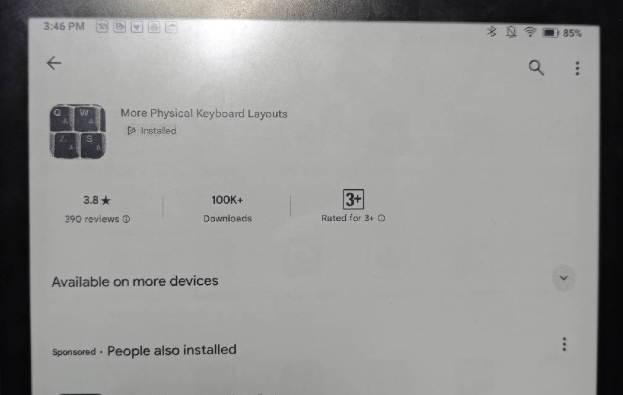
Step 1: Install “More Physical Keyboard Layouts”
First, make sure your BOOX device has access to additional keyboard layouts:
Open Google Play on your BOOX device.
Search for “More Physical Keyboard Layouts” and install it.
Ensure the app is enabled and has the necessary permissions.
Step 2: Connect Your Physical Keyboard
Connect your external keyboard to your BOOX device via USB-C or Bluetooth, depending on your keyboard type.
Step 3: Open Physical Keyboard Settings
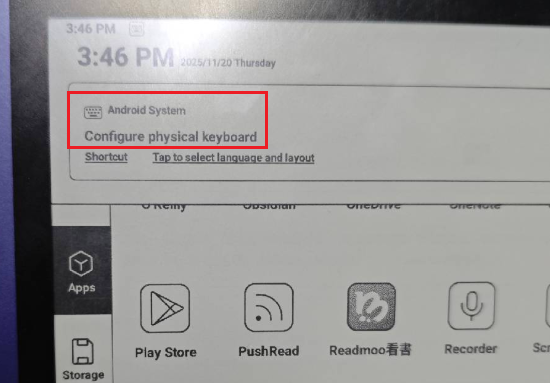
Swipe down from the top-left corner of your screen to open the Notification Center.
Tap Configure physical keyboard.
Step 4: Add the Canadian Multilingual Layout
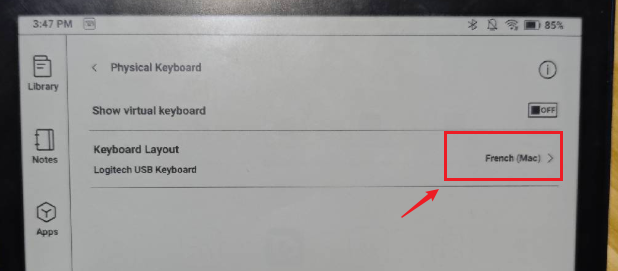
Tap Keyboard layout.
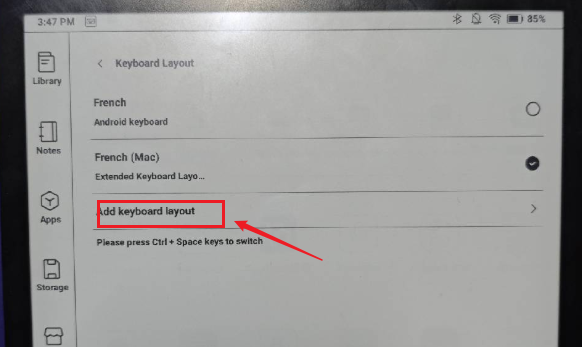
Select Add keyboard layout.
Scroll through the list and find Canadian Multilingual Standard.
Enable it.
Step 5: Select the Layout
Once added, select Canadian Multilingual Standard as your active keyboard layout. Your physical keyboard is now ready for bilingual typing, making it easy to switch between English and French accents seamlessly.

Cheat Sheet: Key Mappings for Canadian Multilingual Standard
Once you have configured the physical keyboard on your BOOX using the steps above, use this quick reference guide to find special characters:
Character | Key Combination (Physical Keyboard) |
é (e acute) | Press the / (slash) key (next to the right Shift) |
è (e grave) | Press the’ (apostrophe) key |
à (a grave) | Press the ** (backslash) key |
ù (u grave) | Right Alt + [ (bracket) |
ç (c cedilla) | Press the ] (bracket) key |
^ (circumflex) | Press [ (bracket) then the letter (e.g., ê) |
“ (diaeresis/tréma) | Shift + [ then the letter (e.g., ë) |
BOOX E Ink eReaders and tablets support a wide range of languages, making them an excellent choice for Canada’s multilingual environment. With the Canadian Multilingual Standard keyboard layout enabled, BOOX users can seamlessly type in both English and French, ideal for daily reading, studying, and professional work.
As the official BOOX distributor in Canada, Einktab proudly provides the full BOOX product lineup to Canadians nationwide, along with local warranty coverage and knowledgeable technical support. Whether you’re using your BOOX device at home, school, or work, you can count on Einktab to ensure the best possible experience.
Troubleshooting Common Issues
If your physical keyboard is typing differently than expected:
- Check the Physical Switch: Some Logitech or Bluetooth keyboards have a hardware switch for “Apple/Mac” vs “Windows/Android”. Ensure it is set to Android/Windows.
- Disable On-Screen Keyboard: Sometimes the virtual keyboard interferes. Go to Settings > Languages & Input and ensure “Show virtual keyboard” is toggled off when the physical one is connected.
- App Permissions: Ensure the “More Physical Keyboard Layouts” app has permission to run in the background in the BOOX App Optimization settings.
FAQ
Yes, the BOOX magnetic keyboard case is a standard physical keyboard. Once you install the layout package following this guide, the keys will map correctly to the Canadian Multilingual Standard.
On the Canadian Multilingual Standard layout, the “@” symbol is often moved. Try pressing Right Alt + 2 or Shift + 2, depending on your specific keycap printing.
No. You simply need to install the layout helper app from the Google Play Store, which is fully supported on all modern BOOX devices running Android 11 or Android 13.