

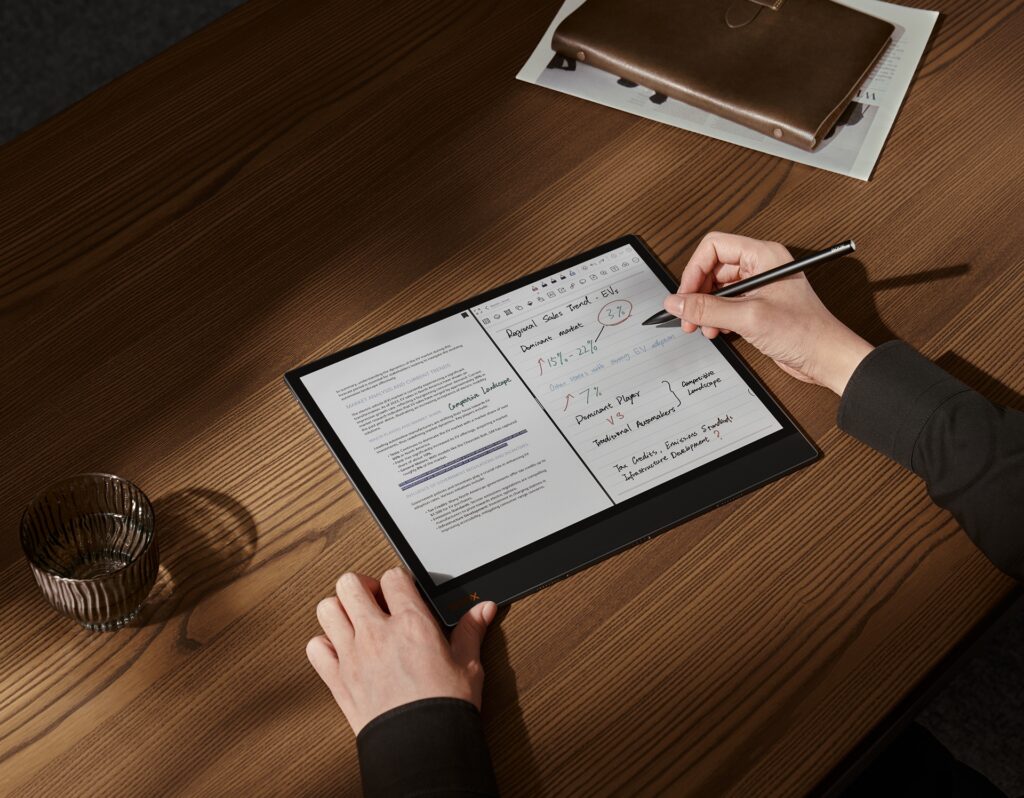
Some BOOX users have reported that certain areas of their tablet screen may not respond to stylus input. If you’re experiencing this issue, it doesn’t necessarily mean that your E Ink device is defective. In many cases, it can be resolved with some simple troubleshooting steps.
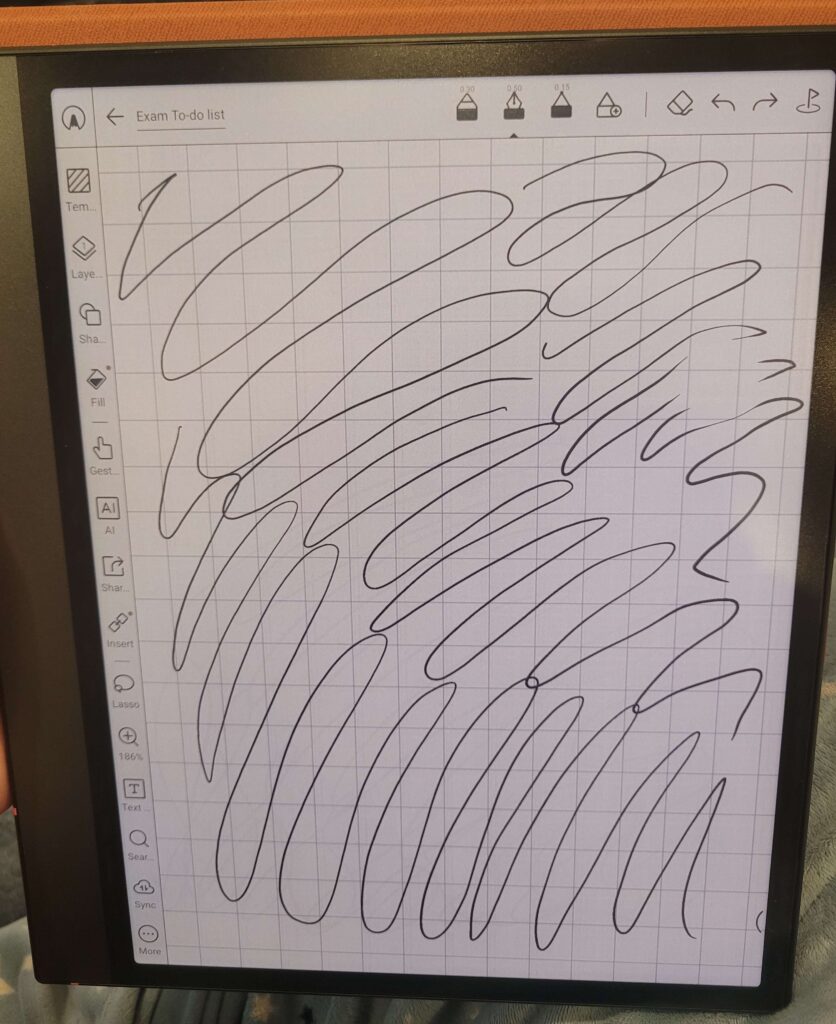
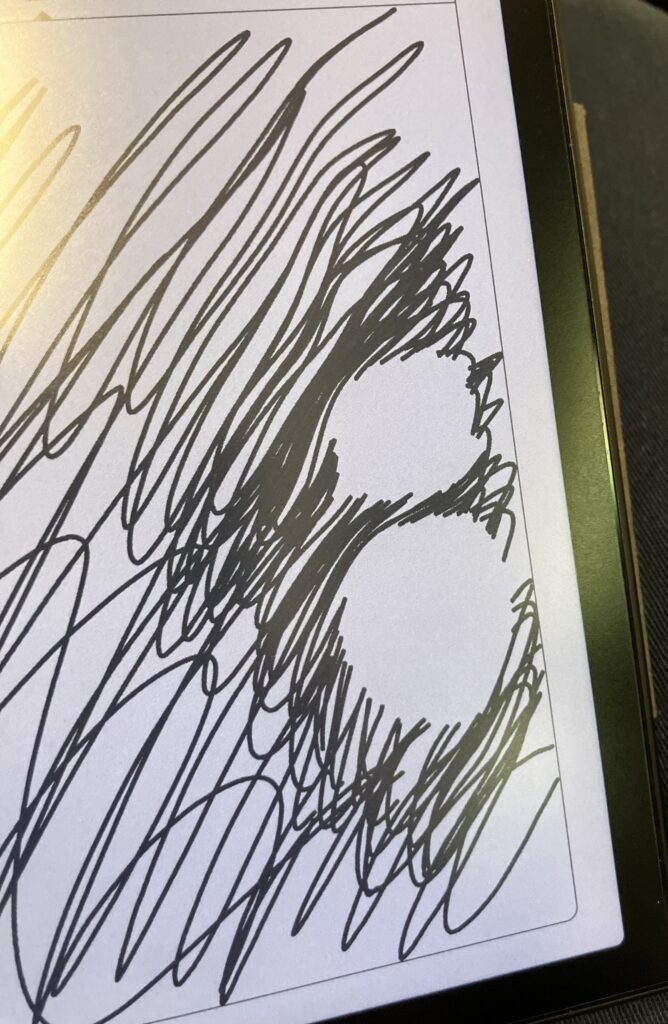
1. Remove the Magnetic Cover
Magnetic covers or cases can sometimes interfere with the stylus. To test this, remove your E Ink device from its magnetic cover and try using the stylus again. Make sure the case holder on the back is not flipped over, as extra magnetic fields in certain areas may cause input issues.
2. Calibrate the Screen
Calibrating your screen can help resolve responsiveness problems:
Go to Settings > More Settings > Calibration from the Home screen.
Follow the on-screen guide to complete the calibration.
Ensure any magnetic cases or stands are removed during calibration for the best results.
3. Perform a Factory Reset
If the above steps don’t resolve the issue, a factory reset may help:
Back up all important data on your device.
Perform a factory reset to restore the device to its original settings.
By following these steps, most stylus input issues can be resolved quickly, ensuring a smooth and accurate note-taking experience on your BOOX tablet.
Why Choose Einktab for Your BOOX Tablet in Canada
Einktab is not only the official distributor of BOOX in Canada, but we also understand the local market and provide reliable after-sale service for Canadian customers. Whether you need support, repairs, or advice on your BOOX tablet, our team is here to ensure a smooth and satisfying experience