

You’ve placed your order, patiently waited for the delivery, and finally unboxed your brand-new BOOX E Ink ereaders and tablets. Exciting, right? But some users immediately run into problems: the Wi-Fi won’t connect, the Google Play Store seems inaccessible, or certain apps don’t appear when searching. If you’ve experienced this, don’t worry, these issues are common and easy to fix.
1. Set Up the Correct Time Zone and Date
One of the most overlooked steps after powering on a new BOOX device is setting up the correct time and date. BOOX devices use your location to synchronize with servers, including Google Play. If your time zone or date is incorrect, your device may fail to connect to Wi-Fi or show apps in the Google Play Store.
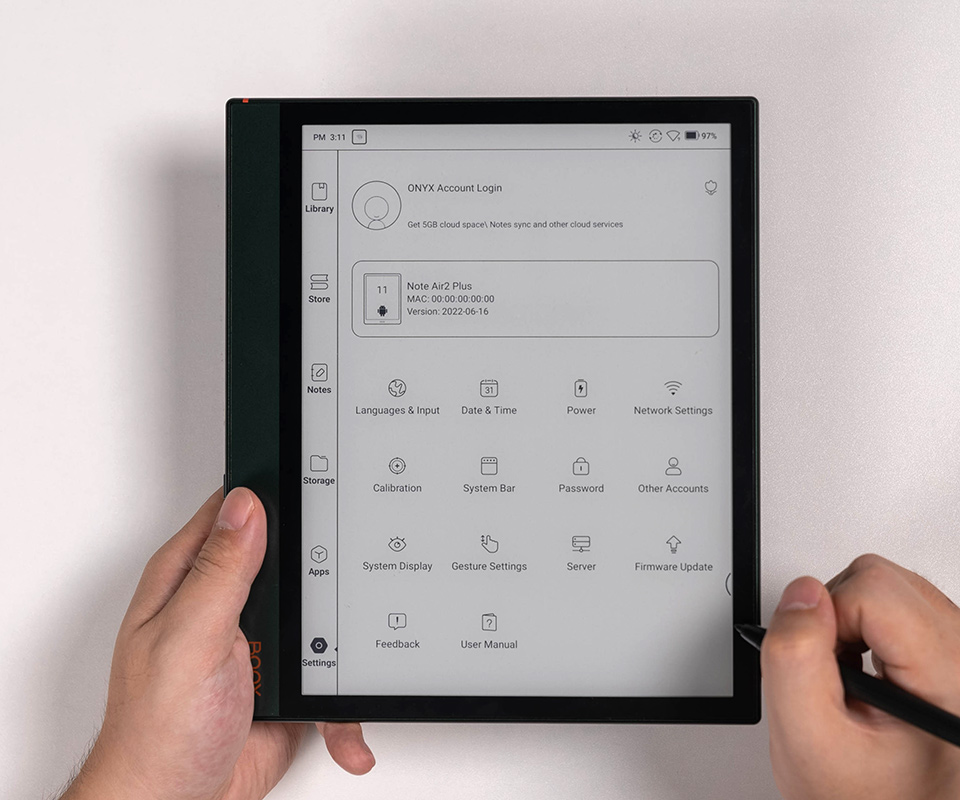
Solution: Go to Settings → System → Date & Time, enable automatic date & time if available, or manually set your correct local time zone and date. Then, restart your device and try connecting again.
2. Understand Google Play Location-Based Search
Even after connecting to Wi-Fi, you may notice that some apps are missing or the search results look different. This is because Google Play customizes its store content based on your location. Certain apps might not appear if your device is set to the wrong region.
Tip: Ensure your BOOX device region matches your actual location. You can also log in to Google Play with your existing account and sync your location settings.
3. Fully Charge Your BOOX Device
Another tip from Einktab: always fully charge your device before the first setup. Some features, including Wi-Fi and app downloads, may not function correctly if your battery is low during initial setup.
Pro tip: Keep your device connected to the charger while updating apps and performing the first sync with Google Play.
4. Additional Troubleshooting Steps
Restart your device: A simple restart can often resolve connection issues.
Check Wi-Fi network: Make sure your network is stable and doesn’t have restrictions like captive portals.
Update your system software: Go to Settings → System → Software Update to ensure you’re on the latest firmware.
New BOOX users often encounter Wi-Fi or Google Play issues immediately after unboxing. The solution is usually simple: set the correct date and time, ensure your location is accurate, and fully charge your device. Following these steps will help you enjoy your BOOX e-reader without interruptions.
If you follow this guide and still face issues, reach out to Einktab support for personalized assistance. Your device is ready to deliver the ultimate e-reading experience, you just need to get it online first!