
Reading an ebook is one thing. Actually retaining what you read, building on it, and coming back to the right passage three weeks later is something else entirely. NeoReader, the built-in reading app on BOOX devices, was designed with that gap in mind. Here is how to close it.
Set Up NeoReader for Focused Reading
The first thing most people skip is the display configuration, and it costs them. Getting the best settings for reading on NeoReader takes about five minutes and makes every session noticeably better.
Open any book in NeoReader and tap the centre of the screen to bring up the toolbar. From there, go to Settings and work through these adjustments:
- Font size and line spacing. Bump line spacing slightly above default. Text that breathes is easier to track across a page.
- Page margins. Wider margins reduce the sense of density on the screen. Even a small adjustment helps on longer reading sessions.
- Screen refresh mode. Switch to A2 or Regal mode for faster page turns with minimal ghosting. Full refresh mode is crisp but slow; regal is the practical middle ground.
- Reading progress display. Turn on the reading progress bar so you have a passive sense of where you are in the book without interrupting focus.
For anyone using a compact device like the BOOX Palma Series, adjusting the font weight slightly heavier than default also helps readability at smaller screen sizes.
Use Text-to-Speech and Auto Page-Turn
NeoReader includes two features that most users ignore completely: TTS (text-to-speech) and auto page-turn. Both are genuinely useful for specific situations.
Text-to-speech lets you listen to your book while doing something else. The voice quality on BOOX devices is decent, and you can adjust the reading speed. It works particularly well for non-fiction where you are absorbing information rather than savouring prose. This is one practical answer to the question of in what ways can ebooks make reading easier compared to physical books, since no paperback will read itself to you on a morning walk.
Auto page-turn is worth using during passive review sessions or when your hands are occupied. Set the interval in the NeoReader settings menu. The feature supports both page-flipping and scrolling modes depending on the document type.
Take Notes and Highlight Key Ideas
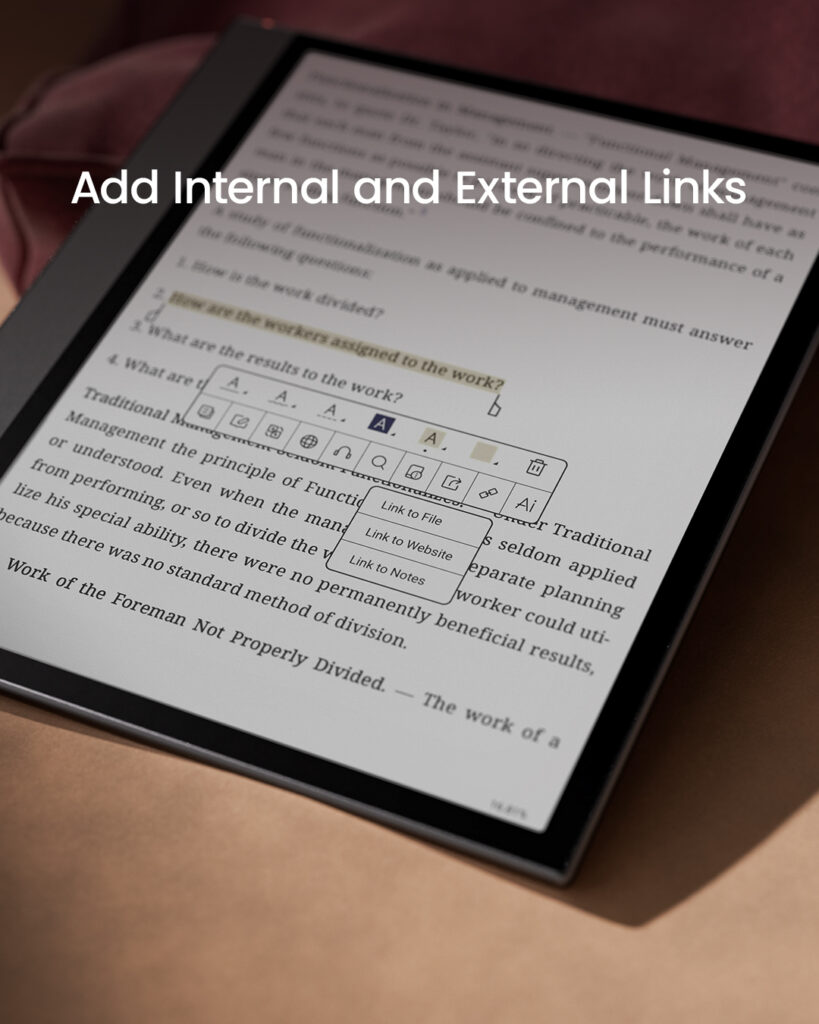
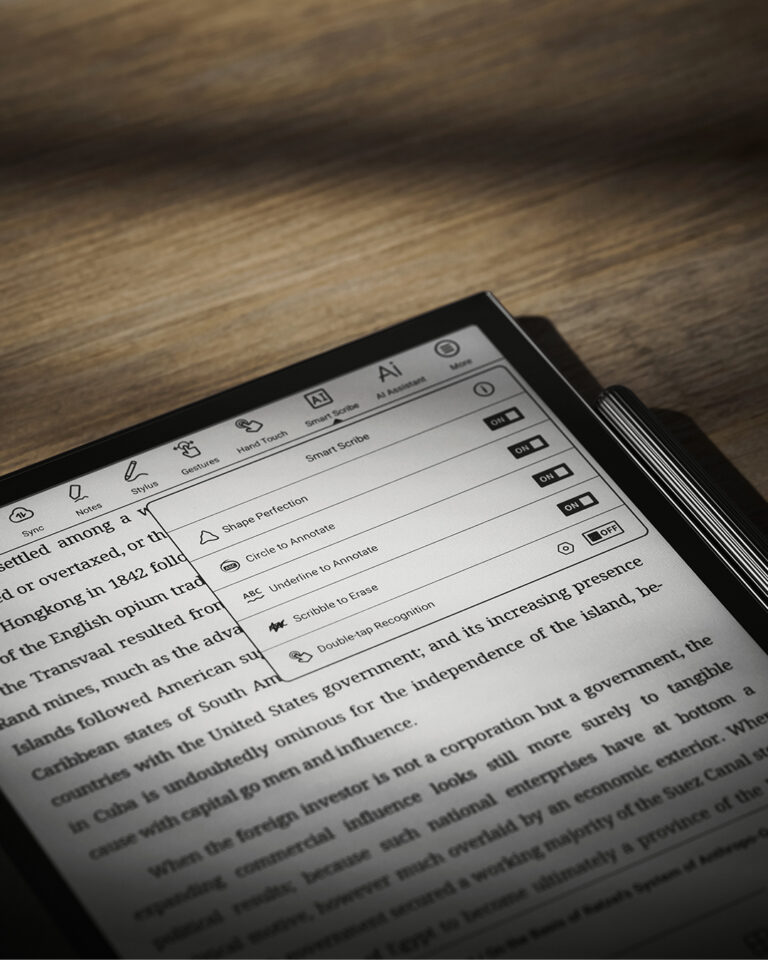
This is where how to highlight and annotate in NeoReader becomes central to the whole system. NeoReader supports four annotation types, and using all of them deliberately turns reading into an active process rather than a passive one.
Here is a quick breakdown of the annotation tools available:
Annotation Type | Best Used For |
Highlight (colour options) | Marking key passages by category or importance |
Underline | Flagging sentences you want to revisit quickly |
Handwritten note | Adding your own reaction or connection to an idea |
Text comment | Typing a longer note attached to a specific passage |
To highlight in NeoReader, press and hold on a word, drag to extend the selection, then choose your action from the pop-up menu. Colour-coding highlights by theme, for example yellow for key arguments and blue for supporting evidence, makes filtering much faster later.
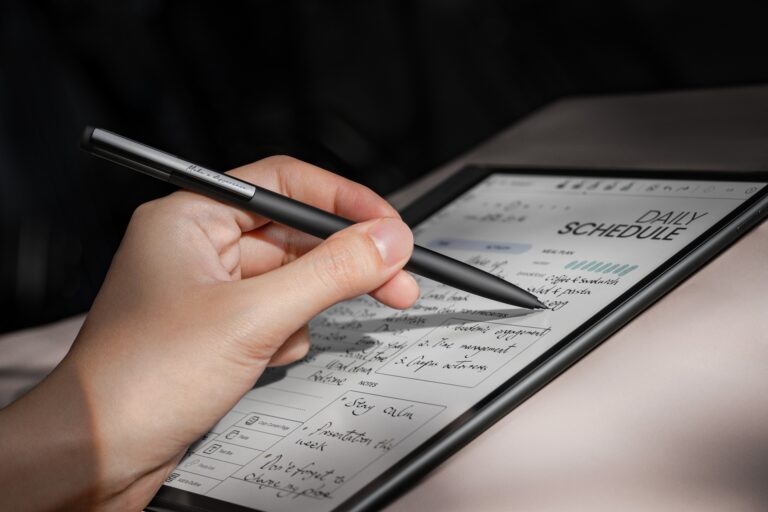
For students figuring out how to use NeoReader for studying, the handwritten note layer is especially useful. You can attach your own summary of a paragraph directly to the passage it came from.
Organize and Filter Your Annotations
Taking notes is only half the process. The other half is being able to find them again. NeoReader stores all annotations in a dedicated panel accessible from the reading toolbar.
Within the annotation panel, you can filter by:
- Highlight colour
- Annotation type (highlight, underline, note)
- Chapter or section
This filtering system is what makes NeoReader features for reading genuinely practical rather than just technically present. If you colour-coded your highlights consistently, you can pull up every yellow highlight across a 400-page book in seconds. That kind of retrieval speed is difficult to replicate with physical marginalia.
Use Split Screen for Summaries
Split screen is one of the less obvious NeoReader features that pays off significantly for anyone doing research or studying. It lets you open two documents side by side, or a document alongside a notes app.
The most practical setup is your primary reading material on one side and a blank note document on the other. As you work through a chapter, you build a running summary without ever leaving the reading environment. Writers researching a topic, students preparing for exams, and professionals reviewing reports all benefit from this workflow.
On larger tablets like the BOOX Note Series, the screen real estate makes split screen genuinely comfortable rather than cramped. The 10.3-inch display gives both panels enough space to work in without constant zooming.
Review Notes and Track Progress
The final piece of a productive reading workflow is what happens after the session ends. NeoReader lets you export all annotations from a book as a text file, which you can then send to cloud services like Google Drive or Dropbox for long-term storage and review.
A simple end-of-session habit makes a measurable difference over time. Spend five minutes doing the following:
- Open the annotation panel and scroll through what you marked.
- Add a short text comment to any highlight that needs more context while memory is fresh.
- Export the annotations file and save it to your cloud storage with the book title and date.
- Check your reading progress percentage and set a target for the next session.
This loop answers the practical side of how to read ebooks efficiently: it is not about reading faster, it is about retaining more of what you already read. The export and review step is what separates people who finish books from people who actually use them.
For more on building a complete BOOX reading and note-taking setup, visit einktab.ca.
FAQ
What is NeoReader?
NeoReader is the built-in ebook reading application on BOOX e-ink devices. It supports PDF, EPUB, MOBI, and other formats, and includes annotation, TTS, split screen, and customizable display settings.
How do you improve your reading on your BOOX device?
Start with display settings: adjust font size, line spacing, margins, and refresh mode. Then set up a colour-coded annotation system and use the export function to review notes after each session.
How to use NeoReader for studying?
Use colour-coded highlights to separate key arguments from supporting evidence, attach handwritten notes to specific passages, and use split screen to build a running summary alongside the source material.
How to highlight and annotate in NeoReader?
Press and hold on any word, drag to extend the selection, and choose highlight, underline, or note from the pop-up. Annotations are stored in a filterable panel accessible from the reading toolbar.
In what ways can ebooks make reading easier than physical books?
Ebooks allow instant search across hundreds of pages, exportable annotations, adjustable text size, built-in dictionaries, and text-to-speech. NeoReader combines all of these in a single app on BOOX devices.