

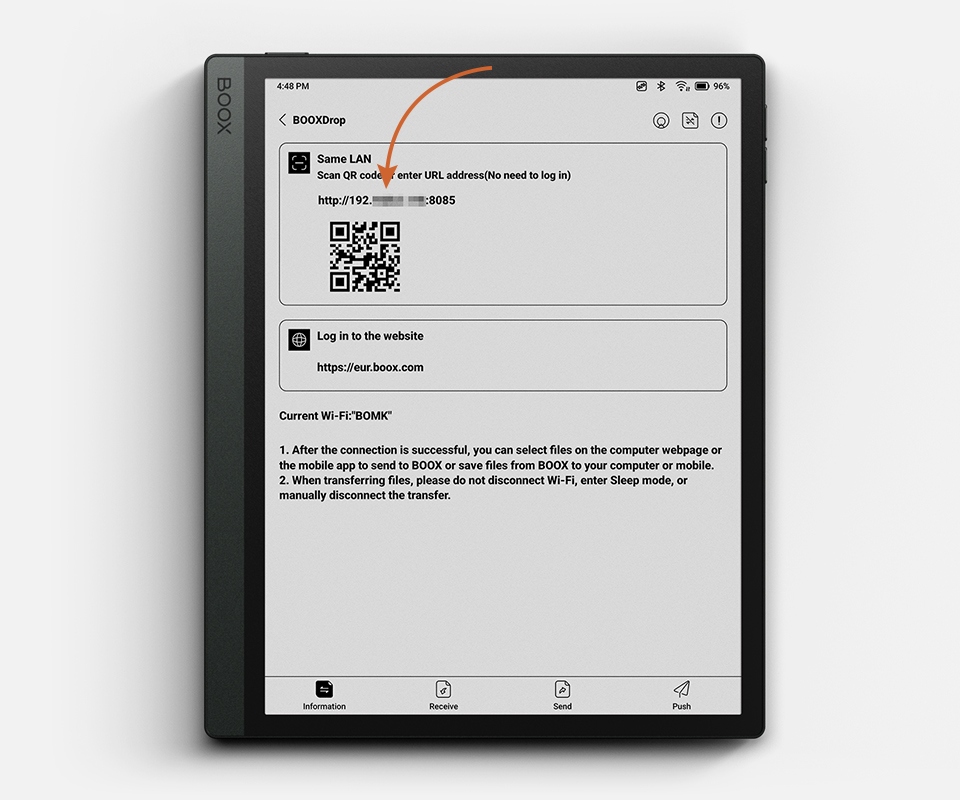
Moving files between your e-reader and a computer has never been the smoothest experience. Cables get lost, Bluetooth transfers stall, and cloud sync tools often require extra accounts or subscriptions. BooxDrop changes this completely. Built directly into BOOX devices, it gives you a fast, browser-based way to push files in both directions without any third-party software. Whether you are loading a new book onto your device or pulling a handwritten note off it, BooxDrop handles the job cleanly and quickly.
What Is BooxDrop and How It Works
BooxDrop is a wireless transfer tool that ships built into BOOX e-ink devices. It arrived with the V3.2 firmware update and has been standard on every BOOX device since. Everything runs over your local Wi-Fi network, so an internet connection is not part of the equation once both devices are on the same network.
Here is the basic mechanics: your BOOX generates a local web address, you open it in a browser on your computer or phone, and from that page you move files in either direction. Nothing to install, no pairing screens, no driver updates. It runs on Windows, macOS, and Linux because a browser is the only requirement.
What makes this genuinely useful is the two-way part. Most basic transfer tools push files onto a device and stop there. BooxDrop lets you retrieve files from your BOOX just as easily — annotated PDFs, exported notes, screenshots, anything sitting in device storage. That makes it a practical tool for people who actually create content on their device, not just consume it.
If you are still choosing which model fits your needs, the full lineup of e-ink tablets is available at einktab.ca — every BOOX device comes with BooxDrop built in from day one.
How to Transfer Files Using BooxDrop
Setting up a BooxDrop file transfer is straightforward and the whole process takes only a couple of minutes. Follow these steps to get files moving:
- Connect your BOOX device and your computer to the same Wi-Fi network.
- On your BOOX device, navigate to the Apps panel or pull down the notification shade from the top of the screen.
- Find the transfer icon and press and hold it until BooxDrop opens.
- A local URL will appear on your device screen.
- Type that URL into a browser on your computer, or log in at push.boox.com to find the linked access.
- The BooxDrop web interface will open in your browser.
- From there, drag and drop files to send them to your BOOX, or browse the device storage to download files back to your computer.
To turn BooxDrop off, simply swipe down the notification panel and tap the transfer button again. The session closes immediately.
What Files You Can Transfer with BooxDrop
One of the practical strengths of BooxDrop is that it places no restrictions on file type. You can send files to BOOX wirelessly regardless of format, and the same applies when downloading from the device. The table below covers the most commonly used file categories:
File Category | Supported Formats | Common Use Case |
E-books | EPUB, PDF, MOBI, AZW3 | Loading new reading material |
Documents | DOCX, TXT, XLSX, PPT | Work and study files |
Images | JPG, PNG, BMP, TIFF | Reference images or screenshots |
Audio | MP3, WAV, FLAC | Audiobooks and background sound |
Handwriting exports | PNG, PDF | Saving notes from the device |
Archives | ZIP, RAR | Batch file transfers |
There is no built-in file size cap on BooxDrop transfers. Larger files simply take longer depending on your network speed, but the transfer will complete as long as the Wi-Fi connection holds.
What Affects Transfer Speed
BooxDrop two-way transfer speed depends on a few practical factors. Understanding them helps you get the fastest experience possible.
Network bandwidth is the most significant variable. A strong 5GHz Wi-Fi connection will complete transfers noticeably faster than a 2.4GHz network, especially for large PDF files or audio content. If your router supports both bands, connecting both your BOOX device and your computer to 5GHz is worth doing.
File size and quantity also play a role. Transferring one large file is typically faster than transferring many small files of the same total size because each file requires its own handshake and confirmation process.
Router distance and interference matter as well. If your BOOX device is far from the router or there are thick walls between them, signal quality drops and transfer speed follows. Moving closer to the router during a large transfer can make a real difference.
Device processing load has a minor effect. If your BOOX is running a heavy annotation session or refreshing a large document in the background, BooxDrop may feel slightly slower than usual. Closing other apps before a big transfer is a simple fix.
When to Use BooxDrop Instead of Other Transfer Methods
Not every transfer method suits every situation. Here is how BooxDrop compares to the alternatives and when it makes the most sense to reach for it:
- Use BooxDrop when you need to transfer files from your phone to BOOX wirelessly and do not want to deal with USB cables. The browser-based interface works on mobile browsers too, so you can send files directly from your phone storage.
- Use BooxDrop when you are moving multiple formats at once. Unlike email attachments or messaging apps that cap file sizes, BooxDrop handles large batches without complaints.
- Use BooxDrop instead of USB when your cable is unavailable or when you are working from a tablet or laptop that lacks a full-size USB port.
- Use push.boox.com when you are away from your desk but still on the same network, since the web portal gives you the same functionality without typing in a local IP address.
USB transfer is still the better choice when your Wi-Fi connection is unstable or when you are transferring very large libraries that could take a long time over wireless. For everyday document and book transfers, though, BooxDrop is faster and less fuss.
FAQ
What is BooxDrop?
BooxDrop is a built-in wireless transfer tool on BOOX e-ink devices. It lets you send and receive files between your device and a computer or phone through a local web browser interface, without any additional apps or accounts required beyond a shared Wi-Fi connection.
How do I transfer files from my phone to BooxDrop?
Open BooxDrop on your BOOX device to generate a local URL or use push.boox.com. On your phone, open a browser and navigate to that address. From there you can select files from your phone storage and upload them directly to the device.
How do I send files to BOOX wirelessly?
Connect both your BOOX device and your computer or phone to the same Wi-Fi network. Launch BooxDrop from the Apps panel or the global menu on your BOOX device, then open the provided URL in a browser. Use the web interface to drag and drop or select files to upload.
Is BooxDrop secure for file transfer?
BooxDrop operates over your local Wi-Fi network, which means files do not travel through external servers. When accessed through push.boox.com, the session is tied to your BOOX account credentials, adding an extra layer of access control. It is a secure option for everyday personal file transfers.
Does BooxDrop have a file size limit?
No. BooxDrop does not enforce a built-in file size limit. Transfer speed will depend on your network bandwidth, but there is no cap preventing you from sending large PDFs, audio files, or document archives.